Join at the counter
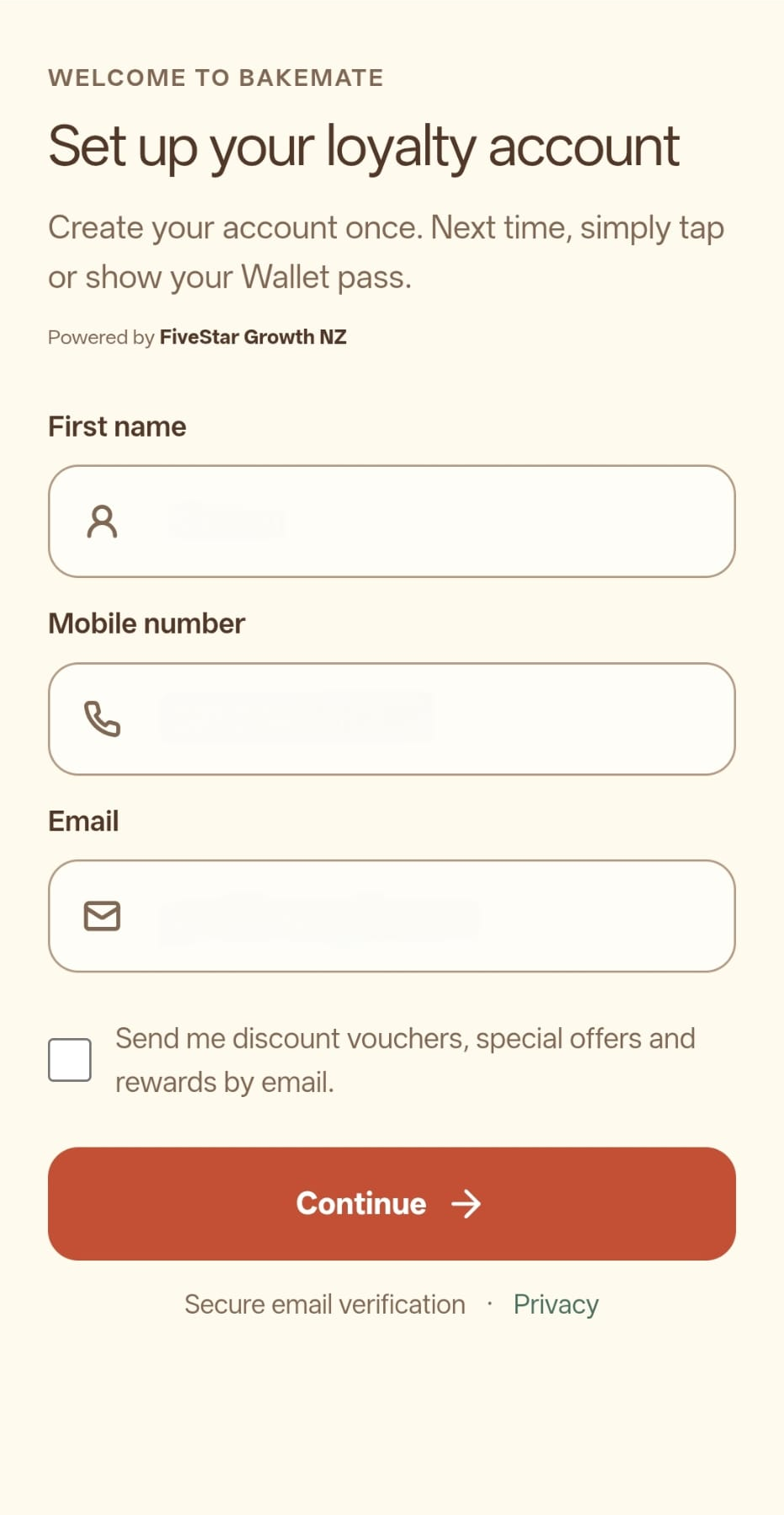
A customer taps your NFC stand or scans the branch QR code. They enter their details on a branded web page. Promotional email is a separate, optional choice.
The customer and staff journey
FiveStar joins the customer's phone to your counter. Your staff stay in control of purchases and redemptions, while customers keep an easy-to-find Wallet pass.
Your team confirms sales in FiveStar's checkout screen on an approved phone, tablet or computer.
Four clear steps
A customer taps your NFC stand or scans the branch QR code. They enter their details on a branded web page. Promotional email is a separate, optional choice.
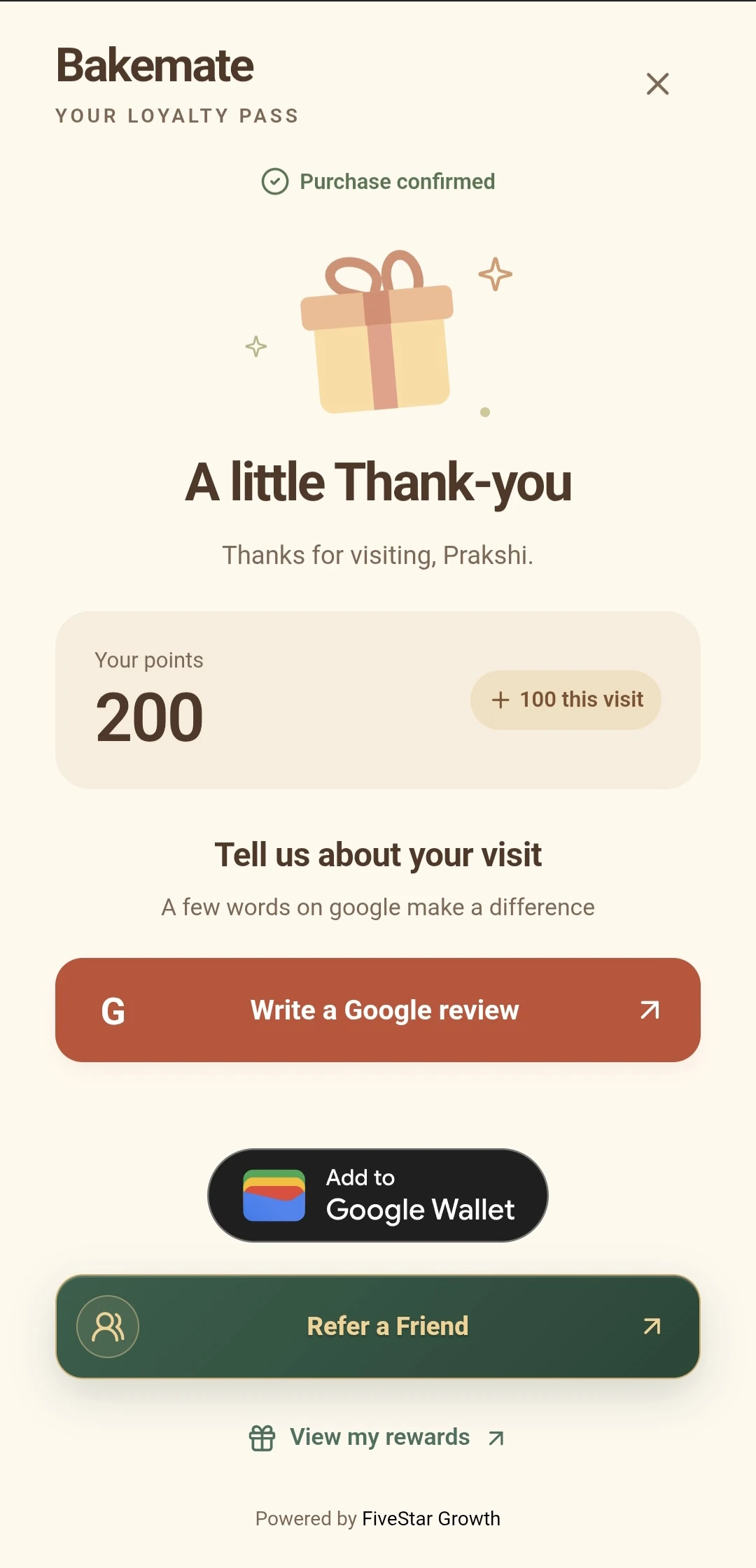
An approved staff device confirms the sale. FiveStar then adds the appropriate stamp or spend points; opening or refreshing the customer link alone earns nothing.
The customer can save a pass to Apple Wallet or Google Wallet and see points, stamps or available rewards from their phone.
After the chosen threshold is met, the customer selects an unlocked reward. Your team verifies and redeems it at checkout.
After a genuine purchase
The customer's purchase confirmation can include a direct Google review button. Leaving a review is optional, and it does not change their loyalty reward.
If you use the optional Refer-a-friend add-on, a shared link can invite a friend. Both referral vouchers are issued only after that friend's first staff-confirmed purchase under the saved offer terms.
Customer email campaigns require a current merchant-specific opt-in and are subject to suppression and sending limits. Wallet text and picture updates share a 24-hour sending limit where available.
Choose the rule that fits
A café may want a simple visit-based coffee reward. A shop with different basket sizes may prefer points based on the confirmed sale amount. You choose the earning rule and reward cost for your business.
Agree what earns a stamp or points, how staff confirm the sale, and how a reward is redeemed. The purchase step belongs to your approved checkout devices.
Explain the threshold in plain language. Reward amounts pictured on this site are examples; each merchant chooses and funds its own rewards.
Want to test a reward before launch? Use the reward cost calculator.
Explore your next step
Find a practical reward idea for your business, or see how another business uses FiveStar.